
Microsoft Designer Complete Guide helps you understand how Microsoft uses artificial intelligence to simplify graphic design, image creation, and visual content generation. Whether you are a beginner, student, teacher, marketer, blogger, or business professional, Microsoft Designer enables you to create attractive designs quickly using AI-powered tools and simple text prompts.
Powered by Microsoft Copilot and advanced AI image generation technology, Microsoft Designer can create social media posts, presentations, invitations, posters, banners, marketing materials, and digital artwork in just a few minutes. Instead of designing everything from scratch, users can describe their ideas in natural language, and the AI generates professional-quality visuals that can be customized further.
In this complete guide, you will learn what Microsoft Designer is, how it works, its history, launch year, key AI features, pricing, practical use cases, advantages, limitations, prompt-writing tips, and how it compares with other popular AI design platforms. By the end of this Microsoft Designer Complete Guide, you will have a clear understanding of when and how to use Microsoft Designer for personal, educational, and professional projects.
💡 Did You Know?
Microsoft introduced Designer as an AI-powered design platform to make professional graphic design accessible to everyone. With the integration of Microsoft Copilot, users can now generate high-quality designs and images simply by describing their ideas in natural language.
What Is Microsoft Designer?
Microsoft Designer is an AI-powered graphic design application developed by Microsoft to help users create professional-quality visual content with minimal effort. By combining artificial intelligence with an intuitive design interface, it enables users to generate images, social media posts, presentations, invitations, posters, banners, greeting cards, and marketing materials simply by describing their ideas in natural language.
Unlike traditional graphic design software that often requires advanced design skills, Microsoft Designer automates much of the creative process. It uses Microsoft Copilot and advanced AI image generation technology to suggest layouts, generate visuals, write creative text, and recommend design improvements within seconds.
Today, Microsoft Designer is used by students, educators, bloggers, marketers, content creators, entrepreneurs, and businesses that want to create attractive designs quickly without spending hours on manual editing. Its AI-powered workflow makes professional design more accessible, helping users transform ideas into polished visual content with just a few clicks.
Rather than replacing human creativity, Microsoft Designer acts as an intelligent creative assistant. It accelerates the design process, reduces repetitive work, and allows users to focus on ideas, communication, and visual storytelling instead of technical design tasks.
💡 Did You Know?
Microsoft Designer uses the same AI ecosystem that powers Microsoft Copilot, allowing users to create images and visual content from simple text prompts while benefiting from Microsoft’s rapidly evolving generative AI technologies.
Microsoft Designer Complete Guide: History and Evolution
The journey of Microsoft Designer reflects Microsoft’s long-term vision of making creativity faster, smarter, and more accessible through artificial intelligence. While Microsoft has offered productivity and creative software for decades, the company entered the AI-powered graphic design space with Microsoft Designer, a platform built to simplify visual content creation using generative AI.
Microsoft first introduced Microsoft Designer in October 2022 as a preview application during the announcement of new AI-powered creative experiences. The platform was designed to help users generate professional-quality graphics from simple text descriptions by combining intuitive design tools with advanced artificial intelligence.
As generative AI evolved, Microsoft integrated Designer with Microsoft Copilot, allowing users to create posters, social media graphics, invitations, presentations, marketing materials, and AI-generated images directly through conversational prompts. This integration transformed Microsoft Designer from a standalone design application into an important part of Microsoft’s growing AI ecosystem.
Today, Microsoft Designer continues to evolve with regular AI improvements, expanded image-generation capabilities, smarter editing tools, and deeper integration across Microsoft products. Its goal is not to replace human creativity but to help users transform ideas into professional designs more quickly and efficiently.
🌍 Global AI Fact
Microsoft is one of the world’s largest technology companies, and the integration of AI across products such as Copilot, Designer, Microsoft 365, and Bing demonstrates its long-term strategy of bringing generative AI into everyday productivity and creative workflows.
Microsoft Designer Complete Guide: Key Features
One of the biggest strengths of Microsoft Designer is its ability to combine artificial intelligence with professional graphic design tools. Instead of starting from a blank canvas, users can generate creative ideas, AI images, social media posts, invitations, posters, presentations, and marketing materials simply by describing what they need.
Some of the most powerful Microsoft Designer features include:
- AI Image Generator – Creates original images from natural-language prompts.
- Microsoft Copilot Integration – Generates creative designs and content through conversational AI.
- Prompt-Based Design Creation – Converts text descriptions into ready-to-use graphics.
- Social Media Designer – Creates professional posts, banners, stories, and advertisements for multiple platforms.
- AI Background Removal – Removes image backgrounds instantly for cleaner designs.
- Image Enhancement Tools – Improve image quality, resize visuals, and apply intelligent editing suggestions.
- Template Library – Access professionally designed templates for business, education, marketing, and personal projects.
- Brand Consistency – Maintain consistent colors, fonts, and visual identity across different designs.
- Quick Resize – Adapt a single design for multiple social media platforms with minimal effort.
- Cloud-Based Access – Create and edit designs from any device through your Microsoft account.
These AI-powered features make Microsoft Designer an excellent choice for beginners, students, teachers, marketers, freelancers, entrepreneurs, and businesses looking to produce professional-quality graphics quickly and efficiently.
🚀 AI in Real Life
A small business owner can use Microsoft Designer to generate product advertisements, promotional posters, social media campaigns, event invitations, and marketing graphics within minutes—saving both time and design costs while maintaining a professional brand appearance.
How Does Microsoft Designer Work?
Microsoft Designer uses artificial intelligence, natural language processing (NLP), and advanced image-generation models to transform simple text prompts into professional-quality designs. Instead of manually creating every design element, users simply describe their ideas, and the AI automatically generates layouts, images, text, and visual suggestions.
When a user enters a prompt, Microsoft Designer analyzes the request to understand its purpose, style, audience, and visual requirements. It then combines AI-generated images, professionally designed templates, typography, color palettes, and layout recommendations to create an attractive design within seconds.
One of the platform’s biggest advantages is its integration with Microsoft Copilot, allowing users to refine prompts, generate new design ideas, edit images, and improve creative content through conversational AI. Every generated design remains fully editable, giving users complete control over colors, fonts, images, spacing, and branding.
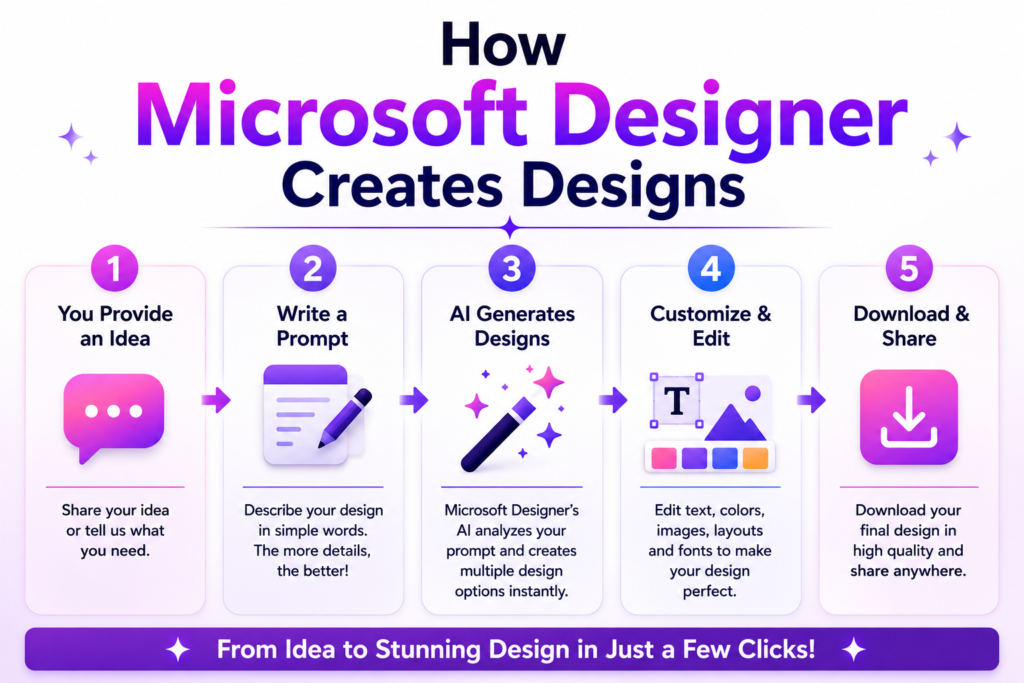
How Microsoft Designer Creates Designs
- Enter a text prompt describing your design.
- Analyze the prompt using artificial intelligence.
- Generate images, layouts, and creative suggestions.
- Customize fonts, colors, graphics, and branding.
- Download or share the final design.
This AI-powered workflow enables users to create social media graphics, posters, invitations, presentations, marketing materials, business content, and digital artwork much faster than traditional graphic design methods.
🧠 Research Insight
Research on AI-assisted creative tools indicates that generative AI can significantly reduce repetitive design work, allowing creators to focus more on creativity, branding, communication, and visual storytelling rather than manual editing.
Microsoft Designer Complete Guide: Pricing Plans
Microsoft Designer offers both free and premium features, making it suitable for casual users as well as professionals. Beginners can start creating AI-powered designs without any cost, while users who require higher AI usage, premium capabilities, and deeper Microsoft ecosystem integration can choose a paid subscription.
| Plan | Best For | Features |
|---|---|---|
| Free Plan | Beginners, students, and personal users | Basic AI image generation, templates, editing tools, and cloud access |
| Microsoft 365 Personal/Family | Individual professionals | Expanded AI credits, premium features, Microsoft app integration, and enhanced creative tools |
| Microsoft Copilot Pro | Power users and creators | Higher AI usage limits, faster image generation, advanced Copilot capabilities, and priority access to AI features |
The Free Plan is ideal for learning Microsoft Designer, creating social media graphics, invitations, posters, presentations, and everyday visual content. Users who frequently create marketing materials, business graphics, or commercial designs may benefit from the additional AI capabilities available through Microsoft’s premium subscriptions.
Before choosing a paid plan, consider your design frequency, AI image generation requirements, and whether you already subscribe to Microsoft 365 or Copilot Pro, as these subscriptions may include additional Microsoft Designer benefits.
💼 Business Tip
Organizations already using Microsoft 365 can maximize productivity by combining Microsoft Designer, Microsoft Copilot, Word, PowerPoint, and Teams to create professional-quality business content within a unified Microsoft ecosystem.
Microsoft Designer Complete Guide: Who Should Use Microsoft Designer?
One of the greatest advantages of Microsoft Designer is its ability to serve users with different creative needs. Whether you are designing for education, business, marketing, or personal projects, Microsoft Designer helps transform ideas into professional-quality visuals with minimal effort.
Students
Students can create presentations, project reports, posters, resumes, infographics, certificates, and study materials more quickly using AI-powered design suggestions and image generation.
Teachers and Educators
Teachers can design lesson presentations, classroom posters, worksheets, quizzes, educational infographics, and learning resources that are visually engaging and easy for students to understand.
Bloggers and Content Creators
Bloggers, YouTubers, influencers, and social media creators can generate thumbnails, blog graphics, Instagram posts, Facebook banners, Pinterest pins, and promotional content without requiring advanced graphic design skills.
Business Professionals
Businesses can create advertisements, product promotions, marketing campaigns, presentations, invitations, brochures, and branded visual content while maintaining a consistent professional appearance.
Freelancers and Designers
Freelancers can use Microsoft Designer to speed up brainstorming, generate design concepts, create marketing graphics, edit AI-generated images, and deliver projects more efficiently. Rather than replacing professional designers, Microsoft Designer helps automate repetitive creative tasks and improve productivity.
Overall, Microsoft Designer is an excellent choice for beginners and experienced users who want to create attractive visual content quickly while reducing manual design work.
🎓 Student Tip
Use Microsoft Designer to enhance the visual quality of your assignments, presentations, and educational projects, but always review and personalize AI-generated content to ensure originality, accuracy, and creativity.
Microsoft Designer Complete Guide: Advantages and Limitations
Like every AI-powered creative platform, Microsoft Designer offers several advantages while also having a few limitations. Understanding both helps users decide when the platform is the right choice for their projects.
Advantages
- Beginner-friendly interface with an intuitive design experience.
- AI-powered image generation from natural-language prompts.
- Deep integration with Microsoft Copilot for faster content creation.
- Professional templates for business, education, and social media.
- Cloud-based platform accessible from multiple devices.
- Quick editing tools for resizing, background removal, and visual enhancements.
- Saves time by automating repetitive design tasks.
Limitations
- Some premium AI features require a Microsoft subscription.
- AI-generated content may require manual editing for accuracy and branding.
- Limited advanced editing compared to professional graphic design software.
- Internet connection is required for most AI-powered capabilities.
- AI image quality may vary depending on the complexity of the prompt.
Despite these limitations, Microsoft Designer remains one of the most accessible AI-powered graphic design platforms for users who want to create professional visuals quickly and efficiently.
🔍 Quick Summary
Microsoft Designer combines artificial intelligence with an easy-to-use design platform, enabling users to create graphics, presentations, social media posts, and marketing materials in minutes. It is especially valuable for beginners, educators, creators, and businesses looking to improve productivity through AI-assisted design.
Microsoft Designer Complete Guide: Microsoft Designer vs Canva AI
Both Microsoft Designer and Canva AI use artificial intelligence to simplify graphic design, but they focus on different creative workflows and user experiences.
| Feature | Microsoft Designer | Canva AI |
|---|---|---|
| Best For | AI-powered graphic creation and marketing visuals | Complete design ecosystem and content creation |
| AI Image Generation | Excellent | Excellent |
| AI Writing | Microsoft Copilot | Magic Write |
| Presentation Design | Good | Excellent |
| Templates | Large collection | Extensive professional library |
| Brand Management | Basic | Advanced Brand Kit |
| Collaboration | Microsoft ecosystem | Strong real-time collaboration |
| Ease of Use | Very beginner-friendly | Beginner to professional |
| Platform | Web and Microsoft ecosystem | Web, Desktop, Android, iOS |
If your primary goal is AI-assisted image creation and seamless integration with Microsoft products, Microsoft Designer is an excellent choice. If you need a complete creative platform with advanced branding, presentations, videos, and collaborative design tools, Canva AI offers a broader feature set.
✅ Pro Tip
Choose Microsoft Designer if you already use Microsoft 365 and Copilot. Choose Canva AI if you regularly create presentations, social media content, business branding, and professional marketing materials.
Microsoft Designer Complete Guide: Best Prompts for Microsoft Designer
The quality of AI-generated designs depends largely on the quality of your prompts. Instead of writing short or vague instructions, describe the purpose, target audience, design style, colors, dimensions, and visual elements you want. Detailed prompts help Microsoft Designer generate more accurate and professional results.
Here are some practical prompts you can use with Microsoft Designer:
- Design a modern YouTube thumbnail for an AI tutorial using blue and purple gradients with bold typography.
- Create a professional business flyer promoting a digital marketing agency with a clean corporate style.
- Generate an Instagram post announcing a product launch using vibrant colors and a premium layout.
- Design a resume for a computer operator with a modern blue-and-white professional theme.
- Create an educational infographic explaining Artificial Intelligence in simple language for college students.
- Generate a Facebook cover banner for an AI learning website with a futuristic technology theme.
- Design a restaurant menu using elegant typography and premium food illustrations.
- Create a promotional poster for a technology conference with a modern AI-inspired background.
The more specific your prompt, the better Microsoft Designer understands your creative requirements and produces high-quality visuals with fewer revisions.
✅ Pro Tip
Include details such as purpose, audience, dimensions, color palette, design style, typography, and output format in your prompt. A well-structured prompt helps Microsoft Designer generate more accurate, creative, and production-ready designs.
🎯 Final Thought
Artificial intelligence is transforming graphic design by making creativity more accessible than ever before. Microsoft Designer is not intended to replace human imagination—it serves as a creative partner that helps users turn ideas into professional-quality visual content faster, smarter, and with greater confidence.
Microsoft Designer Complete Guide: Continue Learning
After completing this Microsoft Designer Complete Guide, you can continue learning through our ChatGPT Complete Guide, Claude AI Complete Guide, Perplexity AI Complete Guide, Canva AI Complete Guide, and AI Glossary. These in-depth resources will help you understand AI chatbots, AI-powered design, prompt writing, search assistants, and the essential concepts of artificial intelligence, making it easier to choose the right AI tools for your personal, educational, and professional needs.
Microsoft Designer Complete Guide: Best Use Cases
One of the biggest strengths of Microsoft Designer is its flexibility. It is not limited to a single type of project but supports a wide range of creative tasks for education, business, marketing, and personal use. By combining AI-powered image generation with intelligent design suggestions, Microsoft Designer enables users to create professional-quality visuals in significantly less time.
Social Media Content
Content creators can design Instagram posts, Facebook banners, LinkedIn graphics, YouTube thumbnails, Pinterest pins, and promotional advertisements that match their brand identity. AI-generated layouts and images help maintain a consistent visual style across multiple platforms.
Marketing and Advertising
Businesses can quickly create product promotions, event posters, flyers, brochures, email banners, and digital advertisements. Instead of hiring a designer for every campaign, marketing teams can generate high-quality visuals using simple prompts and customize them according to their branding requirements.
Education
Students and teachers can prepare presentations, classroom posters, certificates, worksheets, project reports, and educational infographics more efficiently. AI-powered design suggestions make educational content more engaging and easier to understand.
Business Communication
Microsoft Designer is useful for creating business presentations, company announcements, proposals, reports, newsletters, and internal communication materials. Professional templates help maintain a polished corporate appearance.
Personal Projects
Individuals can use Microsoft Designer to design birthday invitations, greeting cards, travel plans, photo collages, event invitations, resumes, portfolios, and digital artwork. The platform makes creative design accessible even to users with no previous graphic design experience.
Overall, Microsoft Designer is suitable for anyone who wants to create attractive visual content quickly while reducing manual design work and maintaining professional design quality.
Microsoft Designer Complete Guide: Tips to Get Better AI Design Results
Creating professional-quality designs with Microsoft Designer is not only about using AI but also about providing clear instructions and making thoughtful design decisions. Following a few best practices can significantly improve the quality of AI-generated images and layouts.
Write Clear and Detailed Prompts
Instead of writing a short prompt like “Create a poster”, describe the purpose, audience, style, colors, dimensions, and important visual elements. Detailed prompts help Microsoft Designer understand your expectations and generate more accurate results.
Define Your Target Audience
Always consider who will see your design. A business presentation, educational infographic, children’s poster, or social media advertisement requires different colors, typography, layouts, and visual styles. Designing with the audience in mind produces more effective communication.
Keep Branding Consistent
If you create content regularly, use consistent colors, fonts, logos, and design styles across all your projects. Maintaining a consistent visual identity helps build brand recognition and creates a more professional appearance.
Review AI-Generated Content
Artificial intelligence can produce impressive results, but every design should be reviewed before publishing. Check the text, images, spacing, colors, and overall layout to ensure accuracy and visual balance.
Experiment with Different Prompts
Do not rely on the first result. Try different wording, styles, and creative instructions to generate multiple design variations. Comparing several AI-generated versions often leads to a stronger final design.
Combine AI with Human Creativity
Microsoft Designer works best when AI supports human ideas rather than replacing them. Use AI for brainstorming, layout suggestions, and image generation, then refine the final design using your own creativity and judgment.
Following these best practices allows users to produce more attractive, accurate, and professional-quality visual content while making the most of Microsoft’s AI-powered design capabilities.
✅ Pro Tip
Choose Microsoft Designer if your workflow revolves around Microsoft 365, Copilot, PowerPoint, and AI-powered graphic creation.
Microsoft Designer Complete Guide: Common Mistakes to Avoid
Although Microsoft Designer makes graphic design much easier, users often make simple mistakes that reduce the quality of AI-generated results. Avoiding these common errors can help you create more professional and visually appealing designs.
Using Very Short Prompts
Many beginners enter prompts such as “Create a poster” or “Make a logo.” These instructions provide very little context, making it difficult for the AI to understand the desired style or purpose. Always include details such as the subject, audience, colors, design style, dimensions, and intended use.
Ignoring AI Suggestions
Microsoft Designer often recommends layouts, fonts, images, and color combinations that improve the final design. Reviewing these suggestions before making manual changes can save time and enhance design quality.
Overcrowding the Design
Adding too much text, too many images, or excessive visual effects can make a design difficult to read. Clean layouts with proper spacing usually communicate information more effectively.
Choosing Inconsistent Colors and Fonts
Using multiple unrelated fonts or random color combinations can make a design appear unprofessional. Stick to a consistent color palette and limit the number of font styles to maintain visual harmony.
Publishing Without Reviewing
AI-generated content should always be checked before sharing or printing. Review spelling, grammar, image quality, alignment, and overall layout to ensure the final design accurately represents your message.
Relying Entirely on AI
Artificial intelligence is a powerful creative assistant, but the best results come from combining AI-generated ideas with human creativity, editing, and decision-making.
By avoiding these common mistakes, users can create more attractive, accurate, and professional-quality designs while making the best use of Microsoft’s AI-powered creative tools.
💡 Did You Know?
Professional designers often generate multiple AI versions of the same idea before selecting and refining the best one. Comparing different AI-generated designs usually leads to stronger and more creative final results.
Microsoft Designer Complete Guide: Final Verdict
Throughout this Microsoft Designer Complete Guide, we explored how Microsoft Designer combines artificial intelligence with an intuitive design platform to help users create professional-quality visual content in less time. From AI-powered image generation and Microsoft Copilot integration to ready-made templates and intelligent editing tools, Microsoft Designer has become one of the most accessible AI design platforms for beginners and professionals alike.
Whether you are a student, teacher, blogger, marketer, freelancer, entrepreneur, or business owner, Microsoft Designer Complete Guide demonstrates that creating attractive graphics no longer requires years of graphic design experience. By combining human creativity with AI-powered assistance, Microsoft Designer enables users to produce presentations, posters, advertisements, social media graphics, invitations, and marketing materials more efficiently.
If your goal is to create visually appealing content quickly while remaining within the Microsoft ecosystem, Microsoft Designer Complete Guide shows why this platform is an excellent choice. Its growing AI capabilities, simple workflow, and seamless integration with Microsoft products make it a practical solution for both personal and professional creative projects.
🎯 Final Thought
Artificial intelligence is changing the future of graphic design, but creativity still begins with human imagination. Microsoft Designer Complete Guide shows that the best results come from combining clear ideas, well-written prompts, and thoughtful human editing with the speed and intelligence of AI. As Microsoft continues to expand its AI ecosystem, We hope this Microsoft Designer Complete Guide helps you confidently use Microsoft’s AI-powered design platform for both personal and professional projects.
Microsoft Designer Complete Guide Related Frequently Asked Questions (FAQs)
What is Microsoft Designer?
Microsoft Designer is an AI-powered graphic design application developed by Microsoft that helps users create professional-quality images, social media graphics, presentations, posters, invitations, and marketing materials using simple text prompts and artificial intelligence.
Who founded Microsoft?
Microsoft was founded by Bill Gates and Paul Allen on April 4, 1975. The company later developed Microsoft Designer as part of its growing artificial intelligence and productivity ecosystem.
Who is the CEO of Microsoft?
Satya Nadella is the Chairman and Chief Executive Officer (CEO) of Microsoft. Under his leadership, Microsoft has significantly expanded its investments in artificial intelligence, cloud computing, Microsoft Copilot, and AI-powered creative tools like Microsoft Designer.
When was Microsoft Designer launched?
Microsoft Designer was first introduced in October 2022 as a preview AI-powered graphic design platform. Since then, Microsoft has continuously enhanced its AI capabilities and integrated Designer more deeply with Microsoft Copilot.
Where is Microsoft headquartered?
Microsoft is headquartered in Redmond, Washington, United States, where the company develops many of its software products, cloud services, and artificial intelligence technologies.
Which country owns Microsoft?
Microsoft is an American multinational technology company founded and headquartered in the United States. Today, its products and AI services are used by millions of individuals, businesses, and organizations worldwide.
Is Microsoft Designer free to use?
Yes. Microsoft Designer offers a free version that includes AI-powered design features for creating graphics, images, and marketing materials. Some advanced AI capabilities and additional benefits require a Microsoft 365 or Microsoft Copilot Pro subscription.
What is Microsoft Copilot in Microsoft Designer?
Microsoft Copilot is Microsoft’s AI assistant that works with Microsoft Designer to generate images, improve prompts, suggest layouts, write creative content, and help users create professional-quality visual designs using natural-language instructions.
Can Microsoft Designer generate AI images?
Yes. Microsoft Designer can generate high-quality AI images from text prompts using Microsoft’s AI image generation technology. Users can create illustrations, digital artwork, social media graphics, posters, and marketing visuals by simply describing what they want.
Is Microsoft Designer better than Canva AI?
Microsoft Designer and Canva AI are both powerful AI design platforms, but they serve different needs. Microsoft Designer integrates deeply with Microsoft Copilot and Microsoft 365, while Canva AI offers a broader creative ecosystem with advanced templates, branding tools, and collaboration features.
Can Microsoft Designer create logos?
Yes. Microsoft Designer can generate logo concepts using AI prompts and customizable templates. While it is suitable for creating simple and attractive logos, professional businesses may still prefer dedicated logo design software for advanced branding requirements.
Can Microsoft Designer be used for commercial purposes?
Yes. Microsoft Designer can be used to create marketing materials, advertisements, product graphics, and business content. However, users should always review Microsoft’s current licensing terms and the usage rights of AI-generated images before using them commercially.
Does Microsoft Designer work on mobile devices?
Yes. Microsoft Designer is available through web browsers and also supports mobile devices, allowing users to create, edit, and share AI-powered designs from smartphones and tablets with their Microsoft account.
Who should use Microsoft Designer?
Microsoft Designer is ideal for students, teachers, bloggers, content creators, marketers, freelancers, entrepreneurs, and businesses that want to create professional-quality graphics quickly without advanced graphic design skills.
What are the best prompts for Microsoft Designer?
The best prompts are clear, specific, and detailed. Include the purpose of the design, target audience, color scheme, style, dimensions, typography, and important visual elements to help Microsoft Designer generate more accurate and professional results.
Is Microsoft Designer worth using?
Yes. Microsoft Designer is worth using for anyone who wants to create attractive graphics, presentations, marketing materials, and AI-generated images quickly. Its AI-powered features, Microsoft Copilot integration, and beginner-friendly interface make it a valuable tool for both personal and professional projects.
Can Microsoft Designer replace professional graphic designers?
No. Microsoft Designer is designed to assist users by automating repetitive design tasks and generating creative ideas. Professional graphic designers are still essential for branding, complex visual identity projects, advanced illustrations, and highly customized creative work.
What makes Microsoft Designer different from traditional graphic design software?
Unlike traditional graphic design software that requires manual design skills, Microsoft Designer uses artificial intelligence to generate layouts, images, and creative suggestions from simple text prompts. This makes the design process faster, easier, and more accessible for beginners.
Is Microsoft Designer suitable for beginners?
Yes. Microsoft Designer is designed with a simple and intuitive interface, making it an excellent choice for beginners. Even users with little or no graphic design experience can create professional-quality designs using AI-powered tools and text prompts.
Can Microsoft Designer create presentations and social media graphics?
Yes. Microsoft Designer can create presentations, social media posts, banners, posters, invitations, advertisements, and marketing graphics. Its AI-powered design suggestions and ready-to-use templates help users produce attractive visual content quickly and efficiently.